
How to Create a Smart Home Setup in a Studio Apartment Without Wi-Fi Congestion
Build a responsive studio-apartment smart home without overloading Wi-Fi by using one well-placed router, Matter over Thread for low-bandwidth devices, and Wi-Fi only where it makes sense.
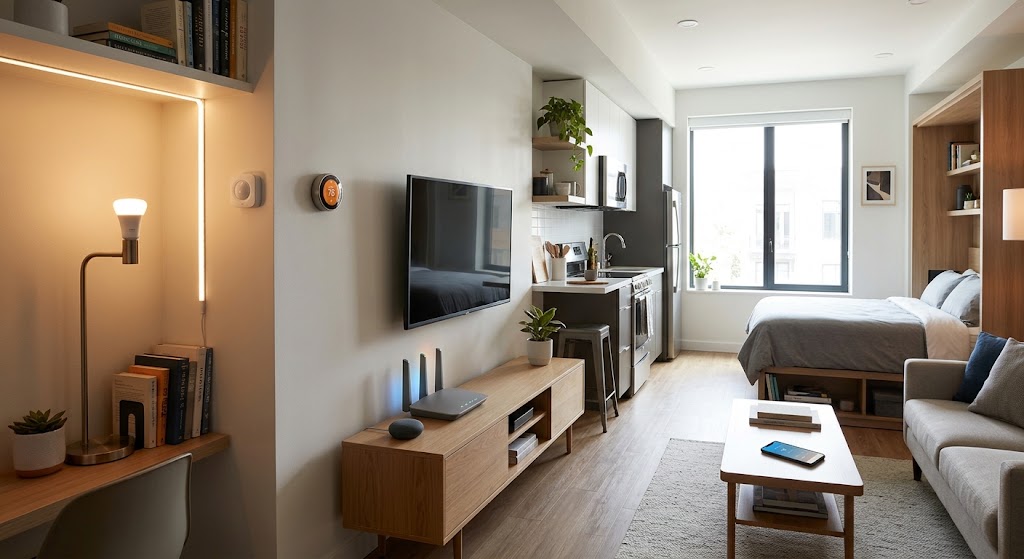
Quick answer
The cleanest smart-home architecture for a studio apartment is to keep the network simple: use one modern, centrally placed Wi-Fi router for phones, laptops, TVs, speakers, cameras, and appliances that genuinely need Wi-Fi, while moving low-bandwidth sensors, switches, blinds, plugs, and locks to Matter over Thread when practical. Thread creates a separate low-power mesh instead of adding every small device as another Wi-Fi client, although Thread still uses the 2.4 GHz radio band and therefore does not eliminate radio-frequency coexistence entirely.
Table of contents
- First: Wi-Fi Congestion Is Not the Same as Slow Internet
- Internet bandwidth
- Wi-Fi airtime and interference
- Smart-home protocol overhead
- The Best Studio Architecture
- Layer 1: Ethernet where convenient
- Layer 2: Wi-Fi for bandwidth-heavy devices
- Layer 3: Thread for low-bandwidth automation
- Matter Is Not a Wireless Network
- Why Thread Helps
- Important nuance: Thread still uses 2.4 GHz
- What Is a Thread Border Router?
- Google Home examples
- Apple Home examples
- A Studio Usually Does Not Need a Wi-Fi Mesh
- Router Placement Matters More Than Router Marketing
- Use One Main SSID Unless You Have a Reason Not To
- When a temporary 2.4 GHz-only setup helps
- Do Not Put Core Smart Devices on a Guest Network Blindly
- If you want network segmentation
- 2.4 GHz, 5 GHz, and 6 GHz: Give Each Band the Right Job
- 2.4 GHz
- 5 GHz
- 6 GHz
- What Actually Causes Problems in a Studio Smart Home?
- Too many Wi-Fi cameras
- Cloud-only automation
- Weak router placement
- Cheap Wi-Fi extenders
- Too many ecosystems
- The Ideal Studio Device Mix
- Wi-Fi / Ethernet
- Matter over Thread
- Example Studio Automation
- Morning
- Away
- Hot afternoon
- Evening
- Should You Use Zigbee Instead of Thread?
- Router Security Without Breaking Compatibility
- Shared Apartment Wi-Fi Is a Special Case
- Better setup
- How to Know Whether You Actually Have Congestion
- Likely Wi-Fi / RF problem
- Likely cloud or vendor problem
- Likely smart-home topology problem
- A Simple Build Order
- Phase 1: Network
- Phase 2: Platform
- Phase 3: Thread foundation
- Phase 4: Low-bandwidth devices
- Phase 5: Wi-Fi devices
- Phase 6: Automations
- Common Mistakes
- Buying a three-node mesh kit for one room
- Choosing Wi-Fi versions of every bulb and sensor
- Believing Matter means Thread
- Hiding the router
- Putting IoT devices on an isolated guest network
- Replacing a stable Zigbee system just to modernize
- Running unnecessary cameras
- The Studio Network Checklist
- Conclusion
Key takeaways
- Do not connect every smart device directly to Wi-Fi just because a Wi-Fi version is available.
- Use Wi-Fi for bandwidth-heavy or cloud-centric devices and Matter over Thread for low-bandwidth automation devices when practical.
- A Thread Border Router connects the Thread mesh to the rest of the IP network; many current smart speakers, displays, streamers, and routers already include this function.
- Keep the router visible, elevated, and reasonably central rather than hiding it behind a TV, inside a cabinet, or beside large metal appliances.
- Guest networks and AP isolation can break local smart-home discovery, so network segmentation should only be used when the router can preserve the local communication your ecosystem requires.
Editorial transparency
Who worked on this article and how it was handled.
- Written by
- Maya Chen
- Creation method
- Editorial research
AI assistance: AI assisted with research organization and drafting. Sources, networking recommendations, current platform support, and the final article should be reviewed by a human editor before publication.
A studio apartment is one of the easiest places to build a smart home—and one of the easiest places to overbuild one.
Because every device is physically close together, it is tempting to buy the Wi-Fi version of everything: bulbs, plugs, sensors, curtains, air quality monitors, speakers, robot vacuums, cameras, thermostats, and appliances. The result may still work, but the network can become harder to troubleshoot, more dependent on cloud services, and increasingly crowded on the same 2.4 GHz spectrum used by many apartment neighbors.
The better approach is not to buy a bigger mesh system.
It is to give each device the right network for its job.
High-bandwidth products belong on Wi-Fi or Ethernet. Tiny control devices are better candidates for Thread or another low-power smart-home network. One well-placed router can then focus on the devices that actually need Wi-Fi instead of acting as the direct radio endpoint for every sensor in the apartment.
First: Wi-Fi Congestion Is Not the Same as Slow Internet
When a smart home feels unreliable, people often blame the ISP.
But three different problems can create similar symptoms:
Internet bandwidth
This is the connection from your apartment to the internet.
It matters for:
- streaming;
- cloud cameras;
- video calls;
- downloads;
- remote access.
Wi-Fi airtime and interference
This is the wireless medium inside the apartment.
Devices sharing the same radio channel must take turns transmitting. Neighboring access points and retries can make this feel congested even when the internet connection itself is fast.
Smart-home protocol overhead
A sensor that reports a door opening does not need streaming-level bandwidth.
The problem is architectural: if every tiny device uses Wi-Fi, each one becomes another client that must associate, maintain connectivity, receive broadcasts, reconnect after router changes, and potentially communicate with cloud services.
The solution is to stop treating Wi-Fi as the only smart-home network.
The Best Studio Architecture
A clean studio smart home can use three layers.
Layer 1: Ethernet where convenient
Use wired Ethernet for stationary high-bandwidth equipment when the router and device are close enough.
Good candidates:
- desktop computer;
- TV or streaming box;
- game console;
- network storage.
Every device moved to Ethernet removes one high-throughput wireless client.
In a studio, this is easier than in a large home because the TV, desk, and router may be only a few meters apart.
Layer 2: Wi-Fi for bandwidth-heavy devices
Keep Wi-Fi for products that genuinely benefit from it:
- phones;
- tablets;
- laptops;
- smart TVs;
- smart speakers;
- robot vacuums;
- portable ACs;
- selected appliances;
- security cameras.
These devices may need:
- firmware downloads;
- audio or video;
- direct internet services;
- rich mobile-app interaction.
Layer 3: Thread for low-bandwidth automation
Use Matter over Thread where practical for:
- contact sensors;
- motion sensors;
- temperature sensors;
- buttons;
- smart plugs;
- light switches;
- blinds;
- locks;
- small battery-powered accessories.
Thread Group describes Thread as a low-power IPv6 mesh designed specifically for smart-home and IoT control devices.
That is exactly the traffic class you do not need to put directly on Wi-Fi.
Matter Is Not a Wireless Network
This is one of the most common smart-home misunderstandings.
Matter is the application standard.
Connectivity Standards Alliance says Matter devices use familiar IP networking technologies including:
- Wi-Fi;
- Thread;
- Ethernet;
with Bluetooth Low Energy commonly used during setup.
So a box that says Matter can still be a Wi-Fi device.
If your goal is reducing direct Wi-Fi client load, look for:
Matter over Thread
rather than assuming the Matter logo alone changes the radio architecture.
Why Thread Helps
Thread is built on IEEE 802.15.4 and runs as its own low-power IP mesh.
Instead of every smart sensor associating directly with the apartment’s Wi-Fi access point:
- battery sensors can act as low-power end devices;
- always-powered Thread devices can route traffic;
- a Thread Border Router connects the mesh to the rest of the IP network.
Thread Group says the network is designed for low-power, low-bandwidth control and can scale to large numbers of devices.
Important nuance: Thread still uses 2.4 GHz
Moving a device from Wi-Fi to Thread does not magically create new radio spectrum.
Thread uses the 2.4 GHz IEEE 802.15.4 band.
So Thread devices can still coexist in the same broad spectrum used by:
- 2.4 GHz Wi-Fi;
- Bluetooth;
- neighboring networks.
The advantage is that Thread uses a purpose-built low-power mesh and no longer requires each small device to be a direct Wi-Fi client.
Think of it as better network architecture—not an RF invisibility cloak.
What Is a Thread Border Router?
A Thread Border Router connects the Thread mesh to Wi-Fi, Ethernet, and the wider IP network.
It does not need to be another dedicated white box.
Thread Group notes that Border Router functionality is commonly built into devices such as:
- smart speakers;
- smart displays;
- routers;
- streaming devices;
- home hubs.
Current platform examples include selected Google and Apple home-hub products.
Google Home examples
Google currently lists Thread Border Router support on devices including:
- Nest Hub (2nd gen);
- Nest Hub Max;
- Nest Wifi Pro;
- Google TV Streamer (4K);
- the current Google Home speaker.
Apple Home examples
Apple currently lists Thread-enabled home-hub options including:
- HomePod mini;
- HomePod (2nd generation);
- selected Apple TV 4K models;
- compatible third-party Thread Border Routers.
Do not buy one only because it has Thread.
Choose the home platform you already want, then make Thread Border Router support one of the purchasing criteria.
A Studio Usually Does Not Need a Wi-Fi Mesh
Mesh Wi-Fi solves coverage.
A studio apartment normally has the opposite problem: everything is relatively close together.
If a single modern router can cover the apartment cleanly, adding extra access points creates hardware you do not need.
That does not mean one router is always enough.
Unusual problems can include:
- reinforced concrete walls;
- metal cabinets;
- router trapped inside a utility enclosure;
- extreme neighboring interference;
- long narrow layouts;
- thick structural columns.
But start with router placement before buying a mesh kit.
Router Placement Matters More Than Router Marketing
Google’s Wi-Fi placement guidance recommends putting the router:
- off the floor;
- in an open location;
- reasonably central;
- away from objects that block the signal.
For a studio, good locations include:
- open TV console;
- wall shelf;
- desk shelf;
- open bookcase.
Bad locations include:
- behind the refrigerator;
- inside a metal cabinet;
- on the floor behind the sofa;
- directly beside a microwave;
- buried behind the TV and a bundle of power cables.
In a 400–700 square-foot studio, moving the router by two meters can matter more than buying another access point.
Use One Main SSID Unless You Have a Reason Not To
A lot of smart-home advice says:
Make a 2.4 GHz network and a separate 5 GHz network.
That can be useful for troubleshooting.
It is not automatically the best permanent design.
Modern dual- and tri-band routers can advertise one SSID while steering compatible clients between:
- 2.4 GHz;
- 5 GHz;
- 6 GHz.
Google’s current Wi-Fi products use this model.
That lets:
- legacy IoT devices stay on 2.4 GHz;
- phones and laptops use 5 GHz or 6 GHz;
- the user manage one network name.
When a temporary 2.4 GHz-only setup helps
Some older smart-home devices only support 2.4 GHz.
If onboarding fails, you may need to:
- temporarily connect the phone to 2.4 GHz;
- temporarily separate bands;
- follow the manufacturer’s setup process.
Once the device is commissioned, you can often return to the normal unified network.
Do Not Put Core Smart Devices on a Guest Network Blindly
Guest networks can be useful for visitors.
They are not automatically good IoT networks.
Google documents a common problem: routers with AP isolation, client isolation, or guest-mode isolation can prevent smart devices from communicating locally with:
- phones;
- speakers;
- displays;
- other smart-home devices.
That can break:
- setup;
- local discovery;
- casting;
- hub control;
- automation.
If you want network segmentation
A dedicated IoT VLAN or SSID can be excellent for security—but only when the router can intentionally allow the local services you need.
That typically means understanding:
- multicast DNS;
- discovery traffic;
- inter-VLAN firewall rules;
- local controller access.
For most studio renters, a simple secure main network is better than a badly configured “secure” IoT network that breaks the smart home.
2.4 GHz, 5 GHz, and 6 GHz: Give Each Band the Right Job
2.4 GHz
Best for:
- legacy IoT;
- devices farther from the router;
- products that only support 2.4 GHz.
Google notes that 2.4 GHz generally reaches farther than 5 or 6 GHz.
5 GHz
Best for:
- phones;
- laptops;
- TV streaming;
- game consoles;
- smart speakers where supported.
It provides higher throughput with less range than 2.4 GHz.
6 GHz
Available on Wi-Fi 6E and Wi-Fi 7 systems.
Best for compatible:
- newer phones;
- laptops;
- computers;
- high-bandwidth clients.
Most smart bulbs, sensors, and plugs do not need 6 GHz.
The practical goal is not to force every device onto the newest band.
It is to keep high-bandwidth clients away from the crowded low-bandwidth traffic where possible.
What Actually Causes Problems in a Studio Smart Home?
Too many Wi-Fi cameras
Cameras are fundamentally different from motion sensors.
A door sensor may send tiny state changes.
A camera may:
- stream video;
- upload clips;
- maintain cloud connections;
- process live view requests.
Use cameras where they solve a real security problem rather than installing one in every direction because they are inexpensive.
Cloud-only automation
If “turn on the lamp” requires:
- phone to cloud;
- cloud to device vendor;
- vendor cloud back to plug;
then internet or cloud latency becomes part of a local light switch.
Matter and local hub-based automation can reduce that dependency for supported devices.
Weak router placement
A device with a weak signal retransmits more often.
Signal quality matters even when the device sends very little data.
Cheap Wi-Fi extenders
An extender can solve a specific dead zone, but it can also complicate:
- roaming;
- network naming;
- client isolation;
- device discovery.
In a studio, fix placement first.
Too many ecosystems
Network congestion is only half the problem.
Operational congestion happens when you have:
- six vendor apps;
- four cloud accounts;
- duplicate automations;
- competing voice assistants.
Standardize around one primary home platform and use Matter to reduce fragmentation where possible.
The Ideal Studio Device Mix
Here is a balanced example.
Wi-Fi / Ethernet
Router
- one modern Wi-Fi 6 or newer router;
- Thread Border Router capability either built in or provided by another home hub.
TV / streaming
- Ethernet if convenient;
- otherwise 5 or 6 GHz Wi-Fi.
Laptop
- 5 or 6 GHz Wi-Fi.
Smart speaker
- Wi-Fi.
Robot vacuum
- Wi-Fi.
One indoor camera
- Wi-Fi.
Matter over Thread
2–4 smart bulbs or switches
2 smart plugs
1 contact sensor
1 motion sensor
1 temperature / humidity sensor
1 blind or curtain motor
That gives you a useful smart home without turning ten low-bandwidth devices into ten more Wi-Fi clients.
Example Studio Automation
Imagine a 500-square-foot studio.
You have:
- one bed;
- small kitchen;
- desk;
- TV;
- one large window;
- entry door.
Morning
At 7:00 a.m.:
- Thread blind motor opens;
- bedside smart plug switches off;
- Thread lights move to daylight scene.
Away
When you leave:
- lights off;
- selected smart plugs off;
- door sensor arms notifications;
- robot vacuum starts.
Hot afternoon
If the studio temperature rises:
- blind closes partially;
- portable smart AC uses its own Wi-Fi connection;
- fan smart plug turns on if appropriate.
Evening
When you return:
- Thread motion sensor triggers entry light;
- TV wakes over Ethernet or Wi-Fi;
- speaker begins low-volume audio.
Only a few devices need Wi-Fi bandwidth.
The rest of the automation happens over the low-power smart-home network.
Should You Use Zigbee Instead of Thread?
If you already own a reliable Zigbee hub and devices, there is no reason to replace everything only to say your apartment uses Thread.
The same architecture principle applies:
low-bandwidth devices do not all need to be Wi-Fi clients.
Thread has an advantage for new Matter-based ecosystems because it is IP-based and supported as Matter’s low-power mesh transport.
But a stable existing hub-based system is better than a forced migration that adds cost and e-waste.
Router Security Without Breaking Compatibility
Use a modern security mode supported by your router and devices.
Google currently recommends modern protected Wi-Fi rather than outdated open or insecure protocols.
The practical complication is legacy IoT.
Some older devices can have trouble with:
- WPA3-only networks;
- unusual enterprise authentication;
- captive portals;
- public apartment Wi-Fi.
If a product only supports old network behavior, treat that as a purchasing disadvantage rather than weakening the entire network without thinking through the trade-off.
Shared Apartment Wi-Fi Is a Special Case
Some studio buildings provide Wi-Fi as an amenity.
That can create a major smart-home limitation.
Google notes that:
- public networks;
- captive portals;
- enterprise-style authentication;
- isolated guest networks
can be incompatible with some smart-home products.
If you do not control the router, local device discovery can also be restricted.
Better setup
Where building rules allow it:
- connect your own router to the provided Ethernet handoff or approved modem;
- create your own private LAN;
- run your smart home behind that network.
If the building only provides captive-portal Wi-Fi and no private Ethernet or router option, choose devices that can operate locally or through a supported hub architecture rather than assuming conventional Wi-Fi smart devices will work normally.
How to Know Whether You Actually Have Congestion
Do not rebuild the network because one bulb failed once.
Look for patterns.
Likely Wi-Fi / RF problem
- multiple Wi-Fi devices drop at the same time;
- streaming quality collapses during local wireless load;
- devices near the router are reliable but distant ones are not;
- moving the router improves everything;
- 2.4 GHz devices repeatedly reconnect.
Likely cloud or vendor problem
- only one brand is offline;
- device works locally but not remotely;
- internet is fine;
- app service reports an outage.
Likely smart-home topology problem
- Thread devices are unreliable at one edge of the apartment;
- Border Router is hidden in a poor location;
- only battery sensors fail while Wi-Fi is fine.
Troubleshoot the layer that is actually failing.
A Simple Build Order
Phase 1: Network
- Place one good router centrally and openly.
- Update router firmware.
- Use one main SSID.
- Confirm 2.4 and 5 GHz operation.
- Wire TV or desktop if convenient.
Phase 2: Platform
Choose one primary control platform:
- Apple Home;
- Google Home;
- Amazon Alexa;
- SmartThings;
- Home Assistant;
- another Matter-compatible controller.
Phase 3: Thread foundation
If your planned devices use Matter over Thread, make sure your platform includes a compatible Thread Border Router.
Phase 4: Low-bandwidth devices
Add:
- lights;
- plugs;
- sensors;
- blinds;
- locks.
Prefer Thread when the product and ecosystem fit.
Phase 5: Wi-Fi devices
Add only the devices that benefit from Wi-Fi:
- camera;
- robot vacuum;
- speaker;
- AC;
- TV.
Phase 6: Automations
Build routines around:
- occupancy;
- time;
- temperature;
- daylight;
- entry/exit.
At this point, the network has a purpose instead of simply having more devices.
Common Mistakes
Buying a three-node mesh kit for one room
More access points are not automatically better.
Fix coverage only when coverage is actually the problem.
Choosing Wi-Fi versions of every bulb and sensor
Wi-Fi is excellent.
It is simply not necessary for every low-bandwidth endpoint.
Believing Matter means Thread
Matter can run over Wi-Fi too.
Check the transport.
Hiding the router
Networking equipment does not become interior design-friendly by putting it behind a refrigerator.
Putting IoT devices on an isolated guest network
Security segmentation that breaks local discovery is not a successful smart-home design.
Replacing a stable Zigbee system just to modernize
Protocol migration should solve a problem.
Running unnecessary cameras
Video is where smart-home bandwidth becomes meaningfully different from simple automation traffic.
The Studio Network Checklist
Before buying the next smart device:
- Router is open, elevated, and reasonably central.
- I have a real reason before adding another access point.
- Phones, laptops, and TV can use 5 GHz or 6 GHz where supported.
- Legacy IoT can still use 2.4 GHz.
- Low-bandwidth devices use Thread or another suitable hub-based protocol when practical.
- My Matter devices are clearly identified as Wi-Fi or Thread models.
- A compatible Thread Border Router exists if I use Matter over Thread.
- Core local smart devices are not trapped behind AP/client isolation.
- Ethernet is used for stationary high-bandwidth devices where convenient.
- I am not adding Wi-Fi cameras without a real use case.
- Automations still work locally where the ecosystem supports it.
- Router security is modern without breaking necessary legacy compatibility.
Conclusion
A studio apartment does not need a complicated network to become a powerful smart home.
In fact, the best setup is usually the opposite: one strong router, one primary smart-home platform, a Thread Border Router, and a deliberate split between Wi-Fi and low-power automation devices.
Keep high-bandwidth devices on Wi-Fi or Ethernet. Put sensors, switches, plugs, blinds, and other low-bandwidth controls on Matter over Thread when the products fit your ecosystem. Avoid unnecessary mesh points, do not isolate devices on a guest network without understanding local discovery, and place the router where radio signals can actually escape it.
The result is not just less Wi-Fi congestion.
It is a smart home that is easier to troubleshoot, more responsive, and much easier to expand without turning a one-room apartment into a networking lab.
Common questions
Questions this guide answers
Can too many smart home devices slow down apartment Wi-Fi?
They can contribute to network congestion, retries, and management overhead, but device type matters more than raw device count. A few cameras or video streams create far more traffic than a group of low-bandwidth sensors. The better strategy is to reserve Wi-Fi for devices that need its bandwidth and use Thread or another low-power hub-based network for small automation devices.
Should smart home devices use 2.4 GHz or 5 GHz Wi-Fi?
Many small smart-home products still use 2.4 GHz because it offers longer range and broad compatibility, while phones, laptops, TVs, and other high-bandwidth devices benefit from 5 GHz or 6 GHz when supported. Modern routers can often use one SSID and steer compatible clients automatically, so separate band names are usually unnecessary unless a specific 2.4 GHz device has setup problems.
Does Matter reduce Wi-Fi congestion?
Matter itself is an application-layer smart-home standard, not a wireless radio. Matter devices can use Wi-Fi, Ethernet, or Thread. Matter-over-Thread devices can reduce the number of low-bandwidth devices attached directly to Wi-Fi because their normal control traffic runs over the Thread mesh through a Thread Border Router.
Do I need mesh Wi-Fi in a studio apartment?
Usually not if a single modern router can be placed in an open, central position and there are no unusual construction or interference problems. Add another access point only after confirming a real coverage problem rather than assuming more Wi-Fi hardware will automatically improve performance.
Evidence & further reading
Sources & references
Primary and authoritative references used to support or contextualize this article. Links open the original source.
- 1Matter FAQs
Connectivity Standards Alliance · Accessed Aug 10, 2026
Supports Matter's use of Bluetooth Low Energy for setup and Wi-Fi, Thread, and Ethernet for device connectivity.
- 2Thread in Homes
Thread Group · Accessed Aug 10, 2026
Supports Thread as a low-power IP mesh for smart-home devices, the role of routers and end devices, 2.4 GHz IEEE 802.15.4 operation, and the Thread Border Router architecture.
- 3Thread with Matter: Better Connections, Smarter Homes
Thread Group · Accessed Aug 10, 2026
Supports Thread's focus on range, responsiveness, and low-bandwidth smart-home control compared with Wi-Fi's higher-throughput role.
- 4How Nest Wifi, Nest Wifi Pro, and Google Wifi 2.4, 5 GHz, and 6 GHz bands work
Google Home and Nest Help · Accessed Aug 10, 2026
Supports simultaneous multi-band operation, band steering, longer 2.4 GHz range, and the reality that some smart-home devices remain 2.4-GHz-only.
- 5Where to place your Wifi devices
Google Home and Nest Help · Accessed Aug 10, 2026
Supports placing a Wi-Fi router in an open, elevated, reasonably central location and avoiding physical obstructions.
- 6Troubleshoot Seamless Setup devices
Google Home and Nest Help · Accessed Aug 10, 2026
Supports 2.4 GHz setup troubleshooting and the warning that AP isolation, client isolation, or guest mode can prevent local smart-home devices from communicating.
- 7Prepare your smart home for Matter
Google Home and Nest Help · Accessed Aug 10, 2026
Supports current Google Home Matter hubs and identifies which current devices also provide Thread Border Router functionality.
- 8Pair and manage your Matter accessories
Apple Support · Accessed Aug 10, 2026
Supports current Apple Home Matter and Thread requirements, including Thread-enabled home hubs and compatible Thread Border Routers.
- 9If you see a 'Thread Border Router Required' or 'Needs Thread Network' alert
Apple Support · Accessed Aug 10, 2026
Supports current Apple devices that can provide or work with Thread connectivity.

About the author
Maya Chen
Maya covers residential energy, HVAC controls, and practical home automation, translating technical systems into useful decisions for homeowners and renters.
More from Maya →Make your home smarter without buying every gadget.
One useful idea, one product worth knowing, and one energy-saving action—delivered weekly.
No spam. Unsubscribe anytime.
Semantic recommendations
Related reading
Selected from topic cluster, entities, tags, search intent, and editorial relationships.

Wi-Fi Router Settings for Smart Homes: Fixing Device Disconnections
Smart bulbs, plugs, cameras, and thermostats dropping offline? These router settings address the most common 2.4 GHz, WPA3, roaming, isolation, channel, and mesh compatibility problems.
How to Set Up an Offline Smart Home Network That Works When Wi-Fi Drops
Build a local-first smart home that keeps critical lights, sensors, locks, and automations working during internet outages—and can keep core automations alive even when the Wi-Fi access point itself fails.
Local DIY Smart Home Hub vs Cloud Ecosystems for Studio Apartments
Compare local smart home hubs with Apple Home, Google Home, Alexa, and other cloud ecosystems to choose the right setup for a small studio apartment.
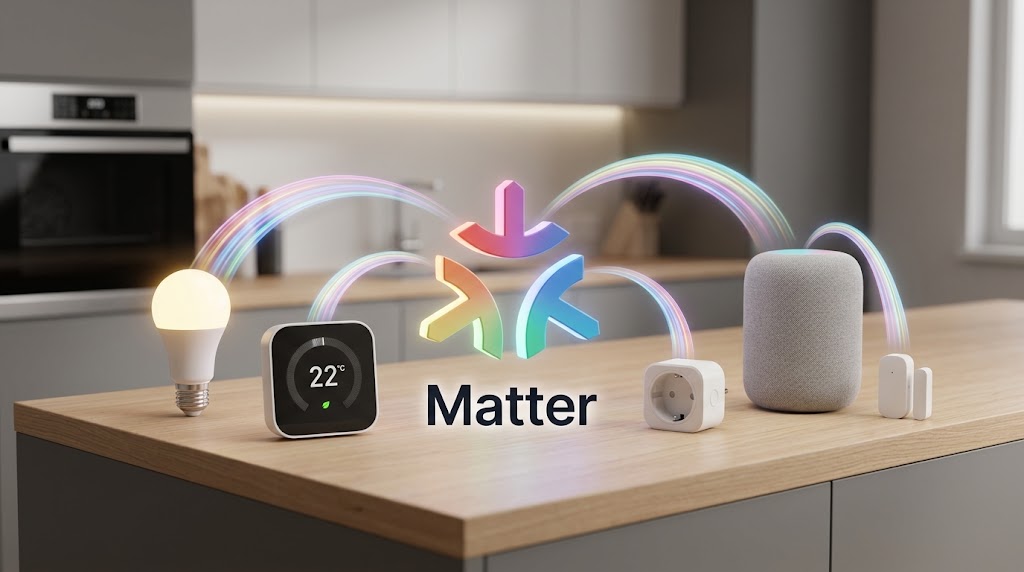
Matter Protocol in 2026: What It Is and Why Your Next Device Needs It
Matter 1.6 is the latest smart-home interoperability standard in 2026. Learn what Matter actually does, how Thread and Wi-Fi fit in, and when you should insist on Matter certification.